In this article
The Stock Alerts screen brings together the lots with upcoming expiry or out-of-range stock so you can prioritize purchases, consumption and discards. It is fed by the system’s traffic-light view, which evaluates products → lots → warehouses in real time.
Getting there
- Sidebar menu Pharmacy → Stock Alerts (Alertas de Stock).
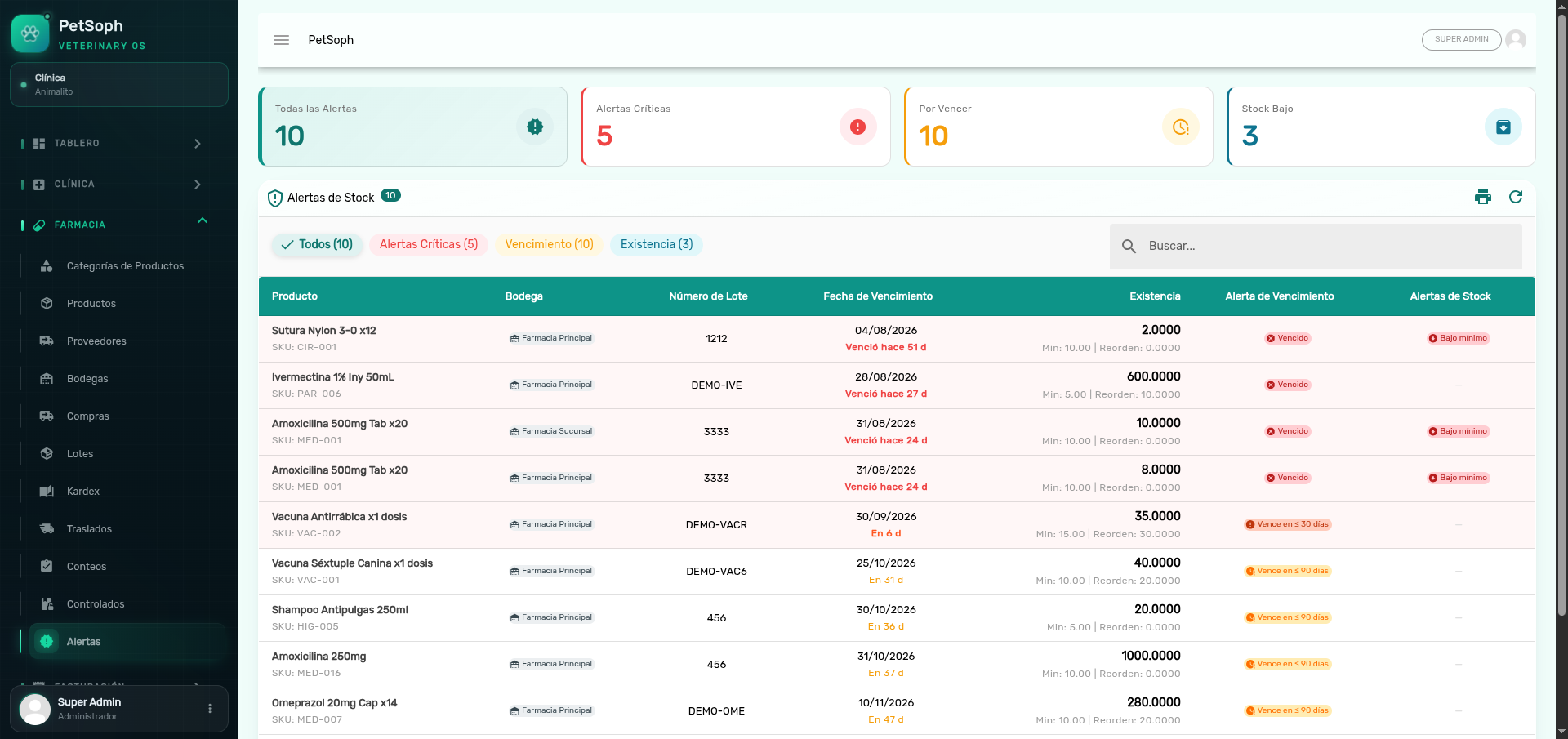 Figure 1. Alerts dashboard with expiration semaphore, low stock warnings, and quick filters.
1. Expiry traffic light
Every lot with a balance is classified by its expiry date:
| Alert | Condition | Color |
|---|---|---|
| Vencido (Expired) | Expiry earlier than the current date | Red |
| Rojo ≤ 30 days | Expires within 30 days or less | Orange |
| Amarillo ≤ 90 days | Expires between 31 and 90 days | Yellow |
| Verde (Green) | Expires more than 90 days out | Green |
2. Stock traffic light
Compares each lot’s balance with the thresholds configured on the product:
| Alert | Condition | Color |
|---|---|---|
Bajo mínimo (BELOW_MIN, below min) |
Balance ≤ minimum (min_stock_level) |
Red |
En reorden (REORDER, reorder) |
Balance ≤ reorder point (reorder_point) |
Orange |
| OK | Balance above both thresholds | Green |
The view only considers lots with a balance greater than zero; depleted lots are excluded from the alerts.
3. Summary cards
The four cards at the top filter the list when clicked:
| Card | Includes |
|---|---|
| Todas (All) | Every lot with some alert. |
| Críticas (Critical) | Lots expired or red + stock below minimum. |
| Por vencer (Expiring soon) | Any expiry alert (expired, ≤30 or ≤90 days). |
| Stock bajo (Low stock) | Any stock alert (below minimum or reorder). |
The same filters are available as chips above the table (All, Critical, Expiration, Stock).
4. The table
Each row shows:
- Product with its SKU.
- Warehouse (blue-grey chip).
- Lot (number in monospace font).
- Expiry as
DD/MM/YYYYwith the days-left text: Venció hace N d (Expired N d ago), Vence hoy (Expires today) or En N d (In N d). The text is colored: red if expired, orange ≤30 days, yellow ≤90. - Stock in base unit with the product’s Min / Reorder line.
- Expiry alert and stock alert as color chips.
Rows with an expired or red expiry are highlighted with a red background.
Use the search box to filter by product, SKU, warehouse or lot number without losing the traffic-light context.
5. Print the report
- Press the printer icon (top-right of the panel).
- The report is generated in the session’s active language and respects the current filter and search.
- In the preview window press the print button.
6. What to do with each alert
| Alert | Recommended action |
|---|---|
| Vencido (Expired) | Discard the lot or generate the expiry movement (never sell or ship it). |
| Rojo ≤30 days | Move stock by transfer to the highest-consumption warehouse or apply FEFO (first expiry, first out). |
| Amarillo ≤90 days | Cut back restocking of that lot and prioritize its exit. |
| Bajo mínimo (Below min) | Issue a purchase receipt to the supplier. |
| En reorden (Reorder) | Prepare the restock order before falling below minimum. |
Alerts are computed when you open the screen: once a lot is handled (dispatched, consumed or adjusted), it disappears from the list on refresh.