The whole app is driven from the side menu. A single click takes you to any module, and the items you are not allowed to see simply do not appear.
Where it is
- Sign in to PetSoph.
- The side menu on the left is your map: click a section name to expand it.
The side menu
The menu is organized in sections. Click a section name to open it:
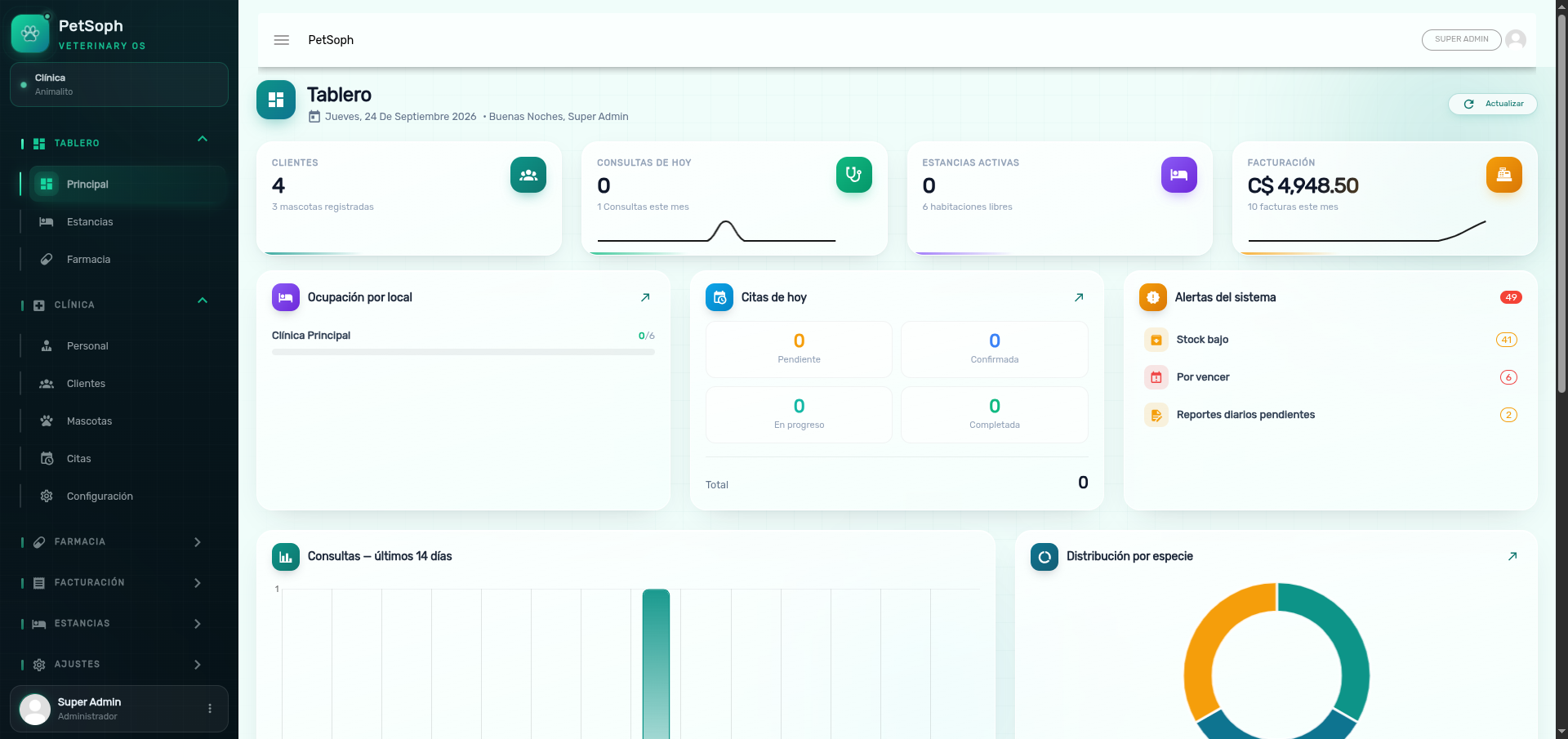 Figure 1. Sidebar menu with access to operative and administrative modules.
| Section | What it contains |
|---|---|
| Dashboard | Principal, Estancias, Farmacia (dashboards) |
| Clinic | Personal, Clientes, Mascotas, Citas, Configuración |
| Pharmacy | Productos, Bodegas, Compras, Lotes, Kardex, Traslados, Conteos, Controlados, Alertas |
| Billing | Facturas, Caja Diaria |
| Stays | Estancias, Hospitalización, Locales, Salas, Habitaciones |
| Administration | Catálogos, Idiomas, Roles, Usuarios, Registros |
The menu adapts itself to your role: if a screen does not appear, your user has no permission to use it. Talk to the administrator if you think access is missing.
The top bar
At the top of the screen you will see:
- The menu button (hamburger) that opens or closes the side menu.
- The clinic name and the link to your profile.
- The Lock session button to protect the screen when you step away.
Where search lives
On every list screen (customers, pets, products, invoices…) the Search button reveals a text field. Type to filter instantly. More details in the search article.
The section and screen names in this article are the ones shown in the app in Spanish. In English and French the location is the same; only the visible label changes.
What’s next
- My account: check your profile and change your password.
- Search: find customers, pets and products.
- First steps: get to know the home screen after signing in.