Usuarios is the screen where the staff accounts are managed: create, edit, enable and disable access, and assign the roles that determine what each person can see and do.
How to get there
- Sign in to PetSoph.
- Side menu Administración → Usuarios.
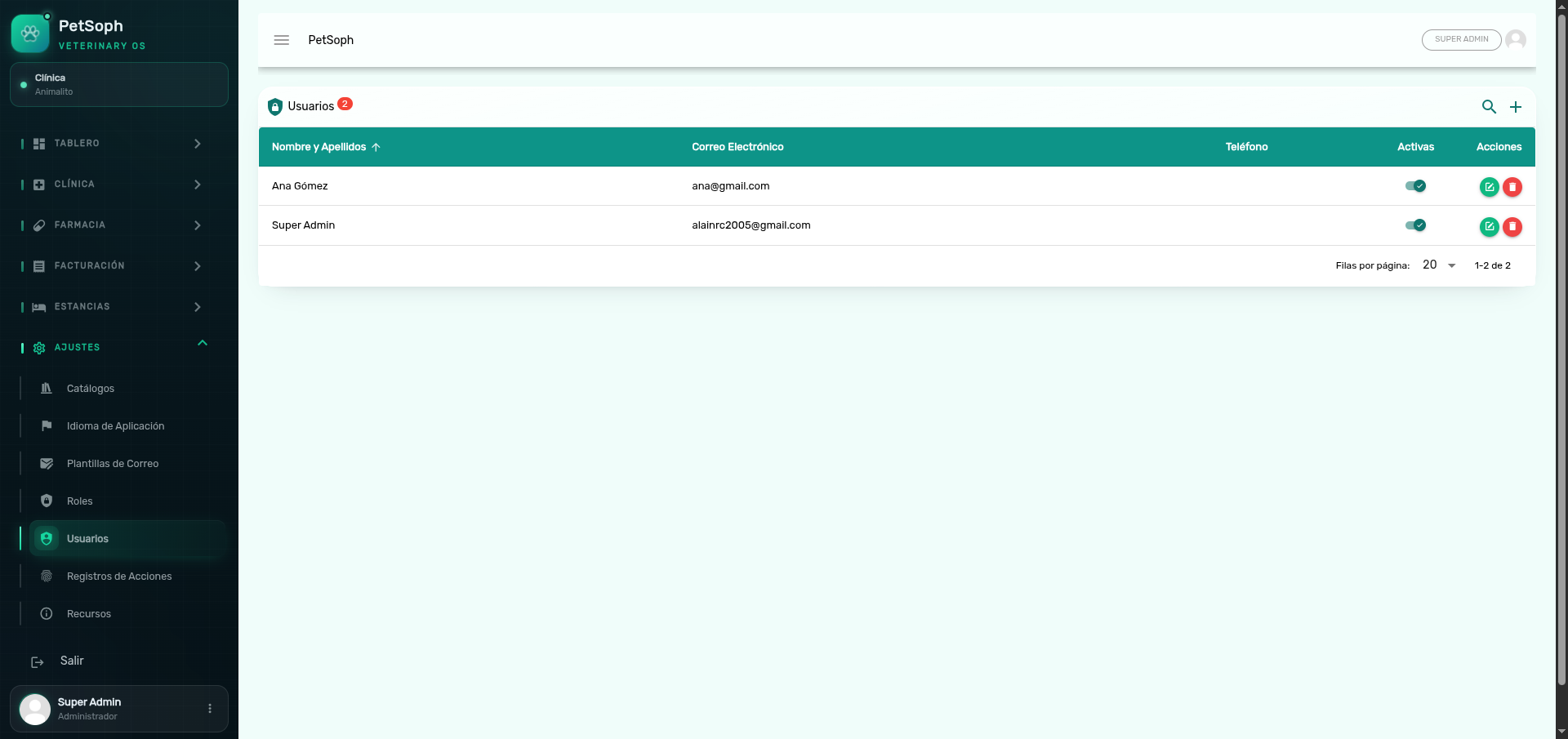 Figure 1. User list showing name, email, phone, status, and role assignments.
What the table shows
| Column | Content |
|---|---|
| Name | Full name of the user |
| Email used to sign in (unique) | |
| Phone | Contact phone |
| Active | Toggle that enables or blocks access |
Use the magnifying glass to search by any of these fields.
Create a user
- Press + (add) on the screen bar.
- Fill in the required fields:
| Field | Rule |
|---|---|
| Nombre completo | Required |
| Correo | Required; must be a valid email and must not be repeated |
| Teléfono | Required |
| Roles | Check one or more roles with the toggles |
- Save. The user can already sign in with their email and password.
A user without roles enters the application but has no permissions: their menu will be empty. Assign at least one role when creating them.
Edit and disable
- Edit: press the pencil on the row; you can change name, email, phone and roles.
- Disable: use the Activo toggle. A disabled user cannot sign in.
To temporarily suspend a person you do not need to delete them: disabling is enough, and their history (especially in the activity log) is kept.
Delete a user
It is deleted from the trash icon with prior confirmation. The system warns if the operation is not possible.
If an email is already registered, the system rejects it when saving (duplicate notice). It is not possible to have two accounts with the same email.
Next
- Roles and permissions: how the roles assigned here are defined.