In this article
A stay (boarding or hospitalization) is born as a reservation and ends when the stay is finalized. Knowing the statuses tells you, at a glance from the color badge, where each pet stands without opening the record.
1. The statuses
| Status | Badge | What it means |
|---|---|---|
Pendiente (PENDING) |
Amber | Reservation created, not confirmed |
Confirmada (CONFIRMED) |
Green | Reservation confirmed, not checked in yet |
En Estancia (CHECKED_IN) |
Cyan | The pet has checked in |
Finalizada (CHECKED_OUT) |
Grey | Finished, the pet left |
Cancelada (CANCELLED) |
Red | Cancelled by the clinic |
No se presentó (NO_SHOW) |
Purple | Did not arrive on the booked date |
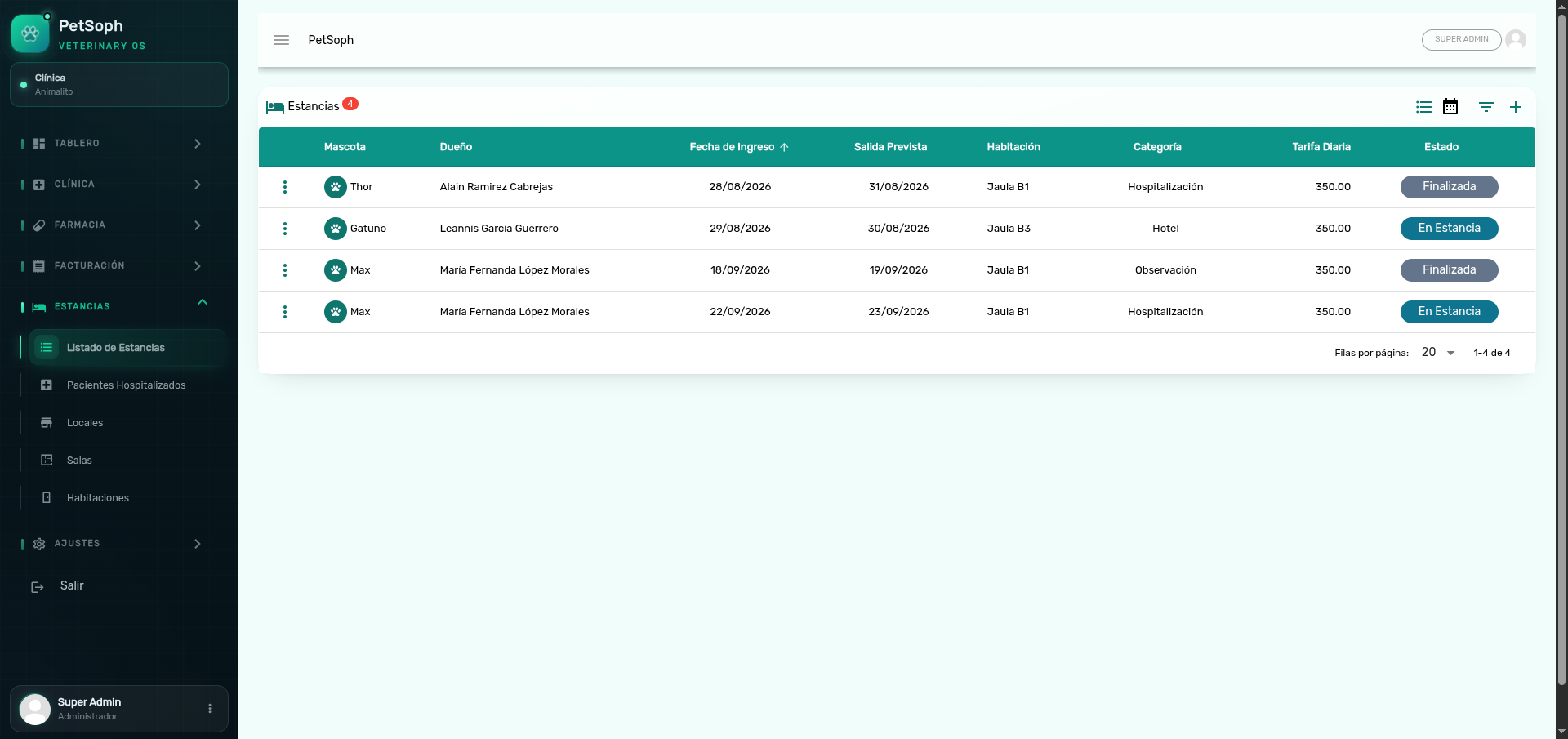 Figure 1. Stay list showing status, pets, dates, and action menus.
Finalizada, Cancelada and No se presentó are terminal: they cannot be modified. Only a Pendiente or Cancelada stay can be deleted.
2. Creating a stay
- In Listado de Estancias, press the + (add) button.
- Select the pet (the owner is filled automatically).
- Choose the category (Hotel, Hospitalización, Observación, Aislamiento, Post-Operatorio or UCI).
- Set check-in date and time.
- Pick local → sala and in Habitación choose an available one (the daily rate is shown).
- Optional: Salida prevista, Depósito and Notas.
The available rooms are computed from the dates, the pet’s species and the chosen local/area. If none appear, jump to the calendar or try other dates.
The system validates the booking before accepting it: the pet’s species must match the room, the stay must not overlap another active reservation of the same animal, and the room must be free for the whole chosen period. If these conditions are not met, the system warns you and does not save the booking.
3. Status changes
From the list (row menu → Cambiar estado) or from the detail:
| You can | From Pendiente | From Confirmada | From En Estancia |
|---|---|---|---|
| Confirm | ✓ | ||
| Check in | ✓ | ✓ | |
| Check out | ✓ | ✓ | ✓ |
| Cancel | ✓ | ✓ | ✓ |
| No show | ✓ | ✓ |
At check-in the vaccination check runs (current rabies). If the pet does not pass it, the check-in is blocked and the missing vaccines are listed.
4. The calendar
The view button at the top toggles between list and calendar:
- Each stay appears as a bar over its date range, with the pet’s name and room.
- Click an empty day to create a stay with that date preloaded.
- Click a stay to open it for editing.
5. The detail (stay record)
Opening a stay shows its data, the vaccination check and the tabs by category:
| Category | Tabs |
|---|---|
| Hotel | Checklist, Servicios Extra, Reportes Diarios, Pertenencias |
| Clinical (Hospitalización, Observación, Aislamiento, Post-Operatorio, UCI) | Planes de Tratamiento, Órdenes Médicas, Signos Vitales, Notas de Enfermería, Administración de Medicamentos |
| All | Resumen de Facturación |
At the detail of a clinical stay, the Ver Ficha button opens the printable hospitalization card of the patient.
What’s next
- Boarding: the guest’s day-to-day: checklist, extra services, daily reports and belongings.
- Hospitalization: the list of admitted patients.
- Rooms: how types and rates are defined.