In this article
The consolidated check-out (or visit settlement) is the fast track to end a complete visit in one invoice: it groups every unpaid clinical act of the pet —consultations, vaccinations, surgeries, grooming and stays— and charges the total in a single payment in front of the ownerarenas. It is the same Check-out / Visit settlement button you saw in the clinical record header.
Getting there
- Billing & Cash → Consolidated Check-out (or the pet’s clinical record → Check-out / Visit settlement).
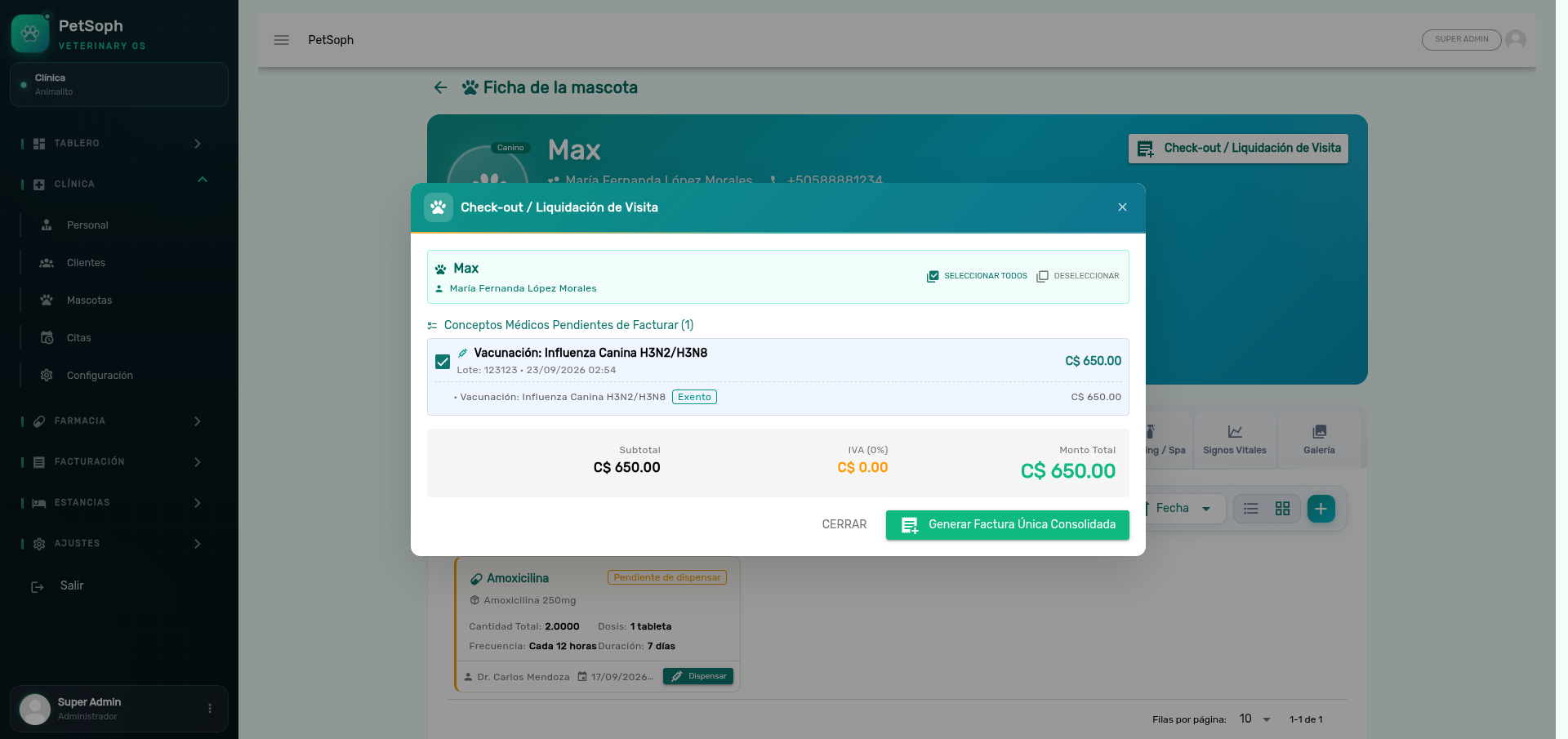 Figure 1. Consolidated check-out dialog grouping consultations, vaccines, surgeries, and grooming.
1. What the dialog shows
Header
- Pet and Customer slots: who is billed (the main owner) and with which pet.
Pending billable items
Grouped list of everything without an invoice yet, split by type:
| Group | What it groups |
|---|---|
| Consultations | Medical consultations without invoice |
| Vaccinations | Vaccination doses without invoice |
| Surgeries | Surgical procedures without invoice |
| Grooming | Grooming services without invoice |
| Stays | Stay nights/days without invoice |
Each group shows: act holder (icon + color by type), act date, items and its partial total.
- Select all / Deselect: mark or clear everything at once. By default everything is selected.
On consultations only those whose prescriptions have not been dispensed appear (an already-dispensed prescription was invoiced at dispensing time; including it here would charge it twice).
Summary
- Subtotal → VAT (X %) → Total Amount (C$).
Use this screen to review the breakdown before charging. It is the moment to tell the owner what they are paying — “the consultation, the vaccine and the bath” — with no surprises on the total line.
2. Generate the consolidated invoice
Press Generate Consolidated Invoice. Prerequisites:
- At least one selected item.
- The pet with a main owner.
- An open cash shift.
On confirm the system:
- Creates one single invoice with sequential numbering.
- Links the same invoice to all the selected clinical acts.
- Auto-dispenses the selected prescriptions: marks them Dispensed, deducts medicines from inventory (kardex, clinical consumption movement) and generates the dispensing charges — on the same invoice.
- Opens the payment dialog (Total / Paid / Outstanding Balance).
Prescriptions entering the consolidated check-out already come dispensed and deducted from inventory once the invoice is confirmed. No need to run the individual dispensing dialog afterwards: dispensing and collection happen in one single act.
3. The charge
- Total: the consolidated invoice amount (C$).
- Amount to Pay / Deposit: the money entering now. Can be the total or a down payment (anticipo / partial).
- Payment method: Cash / Card / Transfer.
- Reference: voucher number (optional; useful for transfers).
- Confirm: the shift records the income and the invoice becomes Paid or Partially Paid (if a balance remains).
You cannot charge more from an invoice than what is owed. The system shows the outstanding balance so the payment is correct.
4. Invoice states after charging
| State | Badge | Meaning |
|---|---|---|
| Paid | Green | Total collected |
| Partially Paid | Blue | A down payment exists, balance remains |
| Pending | Amber | Invoice without payment |
| Void | Red | Voided from the Cash Register (refunds) |
What’s next
- Cash shifts: the shift where the collection is recorded.
- Close-out and arqueo: square the shift that collected the visit.
- Voiding invoices: refund a consolidated visit already charged.
- Stay billing: per-day stays, deposited & settled by night.