In this article
The Appointments module holds the clinic’s full schedule: consultations, vaccinations, baths, grooming, surgeries and other services are booked here with their date, time, staff member and type. The system validates business hours, holidays, vacations and overlaps so the same staff member never ends up with two appointments at the same time.
Where it is
- Log in to PetSoph.
- In the side menu, Clinical → Appointments (calendar icon).
- You need the View Appointments or Manage Appointments permission to use the screen.
Two views: table and calendar
At the top right you can switch between the Table view (default) and the Calendar view.
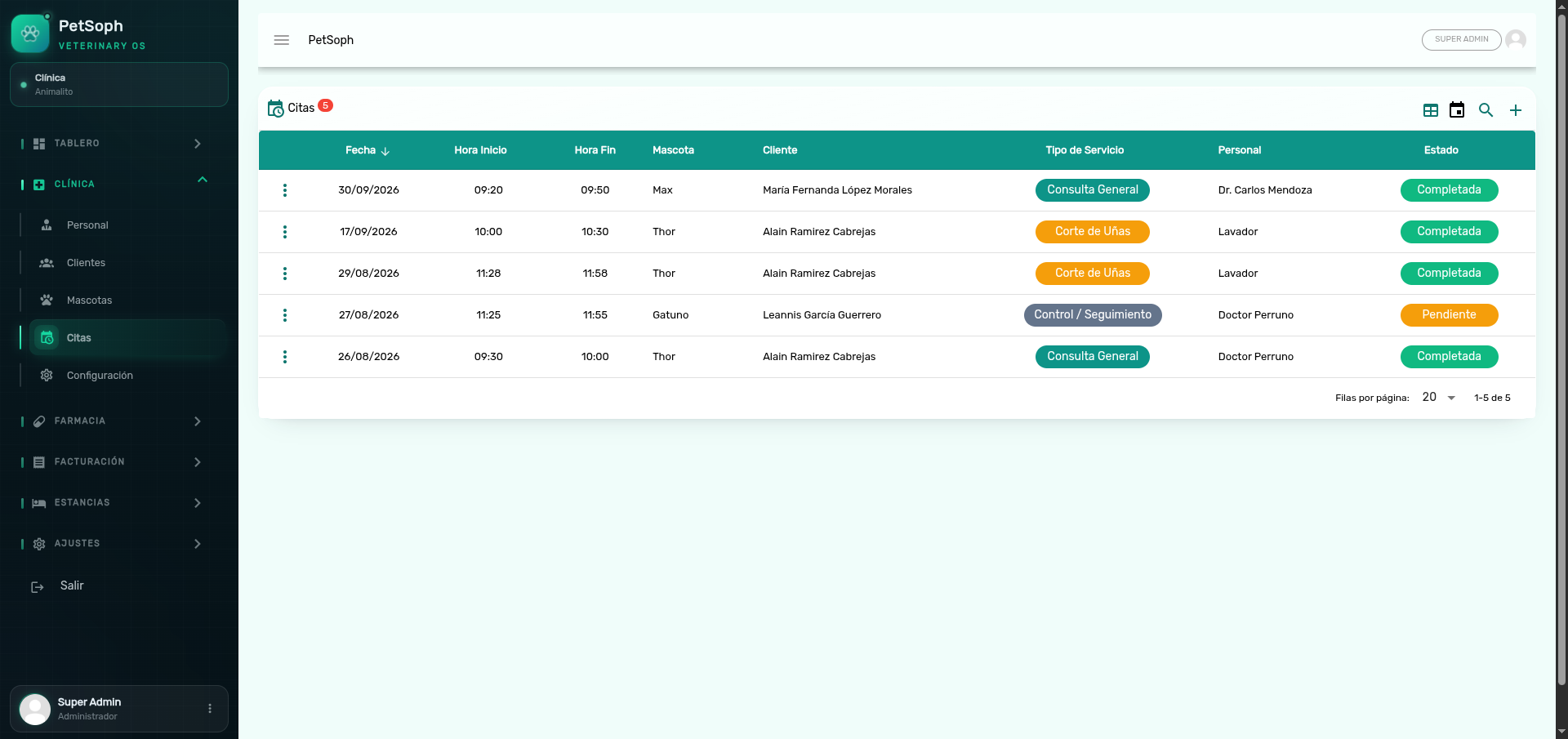 Figure 1. Appointments schedule view with search filters, statuses, and staff assignment.
The number next to the screen title is the amount of appointments in the current list.
Table view
| Column | What it shows |
|---|---|
| Date | Appointment day in DD/MM/YYYY format |
| Start / End | Start and end time |
| Pet | Pet name |
| Owner | Main owner linked to the pet |
| Type | Appointment type (chip with its color) |
| Staff | Assigned staff member |
| Status | Current status (chip with its color) |
- The search button (magnifier) opens a field that filters by pet, staff, type or status.
- The + button creates a new appointment.
Calendar view
- Shows the agenda in Day, Week (default) and Month views.
- Time range from 07:00 to 20:00 in 30-minute steps; today is highlighted.
- Each event shows Pet — Type and the staff member’s name; its color depends on the status.
- You can filter by staff.
- Clicking an empty cell opens the form with date and time prefilled.
- Clicking an event opens it for editing.
Cancelled appointments do not show in the calendar. Use the Table view to see them.
1. Creating an appointment
| Field | Description | Required? |
|---|---|---|
| Customer / Pet | Customer and pet search | Yes |
| Staff | Who attends the appointment | Yes |
| Appointment Type | Service to be performed | Yes |
| Date | Appointment day | Yes |
| Start Time | Start time | Yes |
| End Time | End time | Yes |
| Notes | Comments (max. 500 characters) | No |
When you pick the Appointment Type, the End Time is calculated automatically by adding the type’s estimated duration to the Start Time (it never goes past 23:59). You can still adjust it afterwards.
Validation on save:
- Business hours: the appointment must fall on a day and a time range the clinic works.
- Holidays and vacations: no bookings on holidays or during scheduled vacations.
- Overlap: the same staff member cannot have two appointments whose times overlap. Cancelled and No Show appointments do not block.
The owner is picked automatically from the pet’s main owner, and every appointment starts with a Pending status.
If an appointment type has the wrong estimated duration, adjust it in Administration → Catalogs → Appointment Types.
2. Appointment statuses
| Status | Color | Meaning |
|---|---|---|
| Pending | Amber | Registered, not confirmed yet |
| Confirmed | Blue | Accepted |
| In Progress | Teal | Being attended right now |
| Completed | Green | Finished |
| Cancelled | Red | Voided |
| No Show | Grey | Nobody showed up |
From each row’s action menu pick Change Status and select the new status. If you pick Cancelled, the Cancellation Reason field is enabled.
Only active catalog statuses can be assigned. If a status is deactivated, it stops appearing as an option.
3. Editing an appointment
- The Edit action is available except for Completed or Cancelled appointments.
- On save, business hours, holidays, vacations and overlaps are validated again (ignoring the appointment itself).
A Completed or Cancelled appointment can’t be edited or deleted; only its status can be changed.
4. Deleting an appointment
An appointment can only be deleted when its status is Pending or Cancelled (a confirmation is requested before deleting). For any other status, the system blocks the deletion and warns you.
5. Related catalogs
Managed from Administration → Catalogs, group Appointments:
| Catalog | What you configure |
|---|---|
| Appointment Types | Name, estimated duration (min) and color. System types can’t be deleted |
| Appointment Statuses | Name, chip color and whether it’s active (available to assign) |
What’s next
- Medical consultation and prescriptions: how to record a visit.
- Vaccination: the vaccination card.
- Vital signs: weight and constants of the pet.
- The clinical record: the pet’s complete file.