In this article
This article covers everyday physical inventory: setting up warehouses, receiving goods, controlling lots and expirations, reading movements, and running transfers, stocktakes and the controlled-drugs book.
Getting there
- Sidebar menu Pharmacy → any of the module screens.
1. Warehouses
Warehouses are the clinic’s physical or logical storerooms.
| Field | Description | Required? |
|---|---|---|
| Name | Storeroom name | Yes |
| Type | Central, Counter, Operating Room, Hospitalization, Mobile or Other | Yes |
| Responsible | Team member in charge (optional) | No |
| Location | Physical location (optional) | No |
| Frozen | Blocks every entry and exit | No |
| Active | Marks the warehouse as active | No |
A frozen warehouse rejects receipts, exits, returns, consumption and transfers with a warning. Unfreeze it only when the restriction ends (e.g. quarantine).
2. Purchase receiving
Registers goods entering a warehouse, by lot and expiration date.
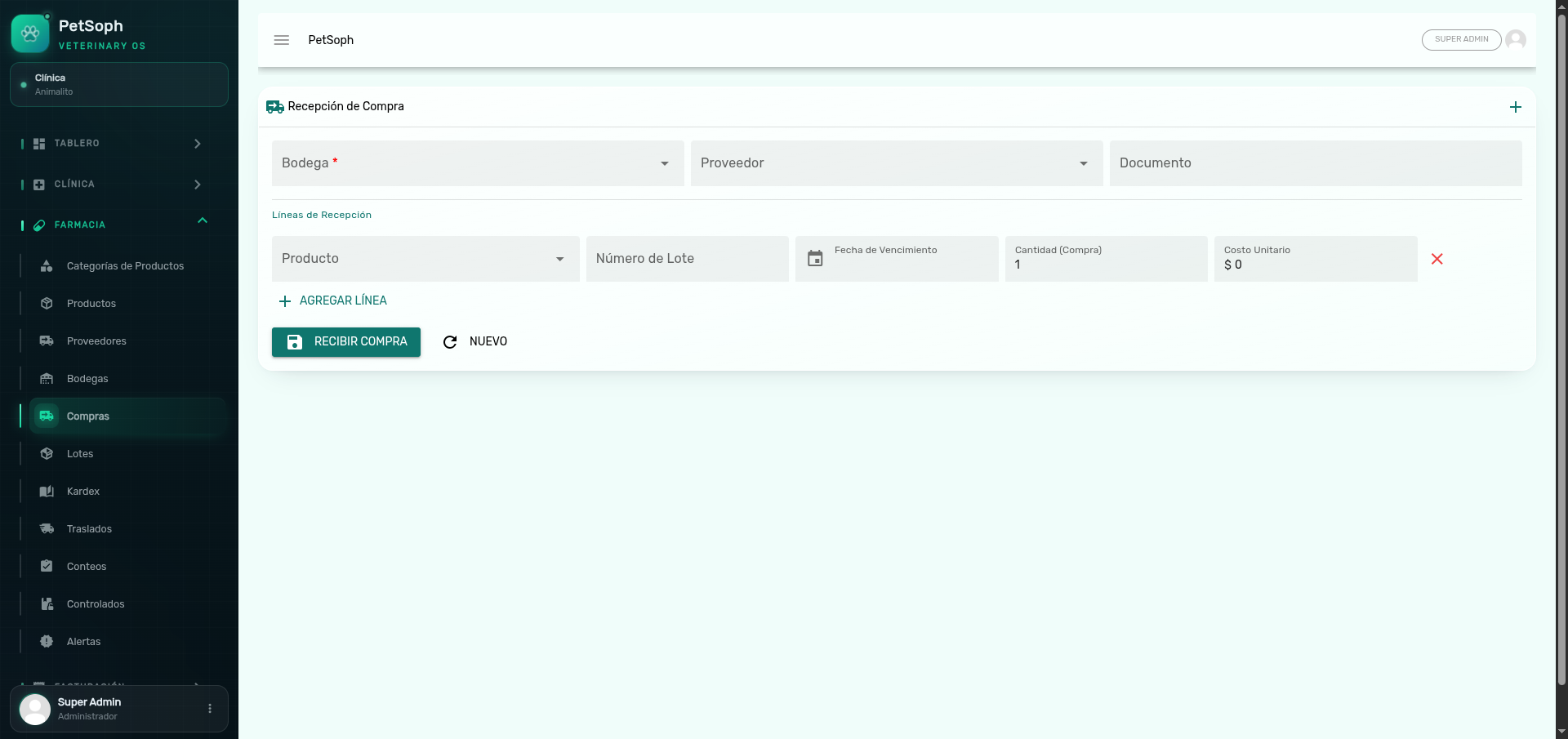 Figure 1. Purchase receiving with lot numbers and expiration dates.
Step by step
- In Purchase Receiving press New.
- Select the destination Warehouse (required).
- Select the Supplier and enter the Document number (invoice / delivery note).
- Add lines: Product, Lot number, Expiration date, Purchased quantity and Unit cost.
- Press Receive Purchase.
What the system does on receiving
- Converts the quantity to the base unit using the product factor.
- If the lot does not exist it creates it; if it exists it adds to that warehouse’s balance.
- Recalculates the product’s average cost.
- Records a Purchase in movement (
PURCHASE_IN) in the kardex with an idempotency key (it is not duplicated even if you confirm again). - If the product is controlled, it generates its folio in the Controlled Drugs Book.
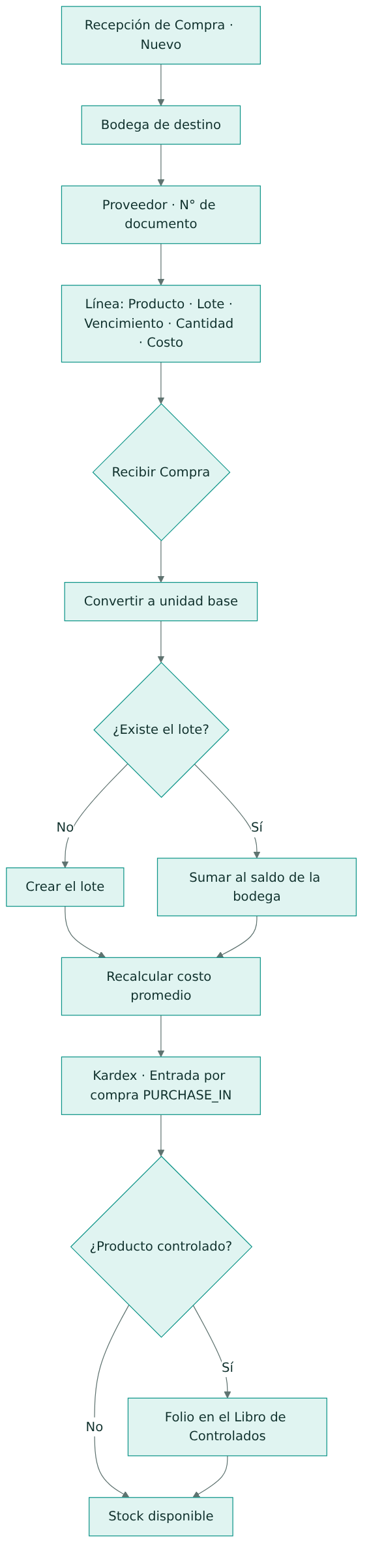
Figure 2. What the system does when receiving a purchase.
Enter the correct Document number: it is part of the traceability and prevents duplicate receipts.
A lot is identified by product + lot number. Check that you don’t repeat the same lot of the
same product across two different invoices unintentionally.
3. Lots
The Lots screen is read-only and shows the traceability of each lot: product, SKU, lot number, expiration, base unit cost, total balance and status.
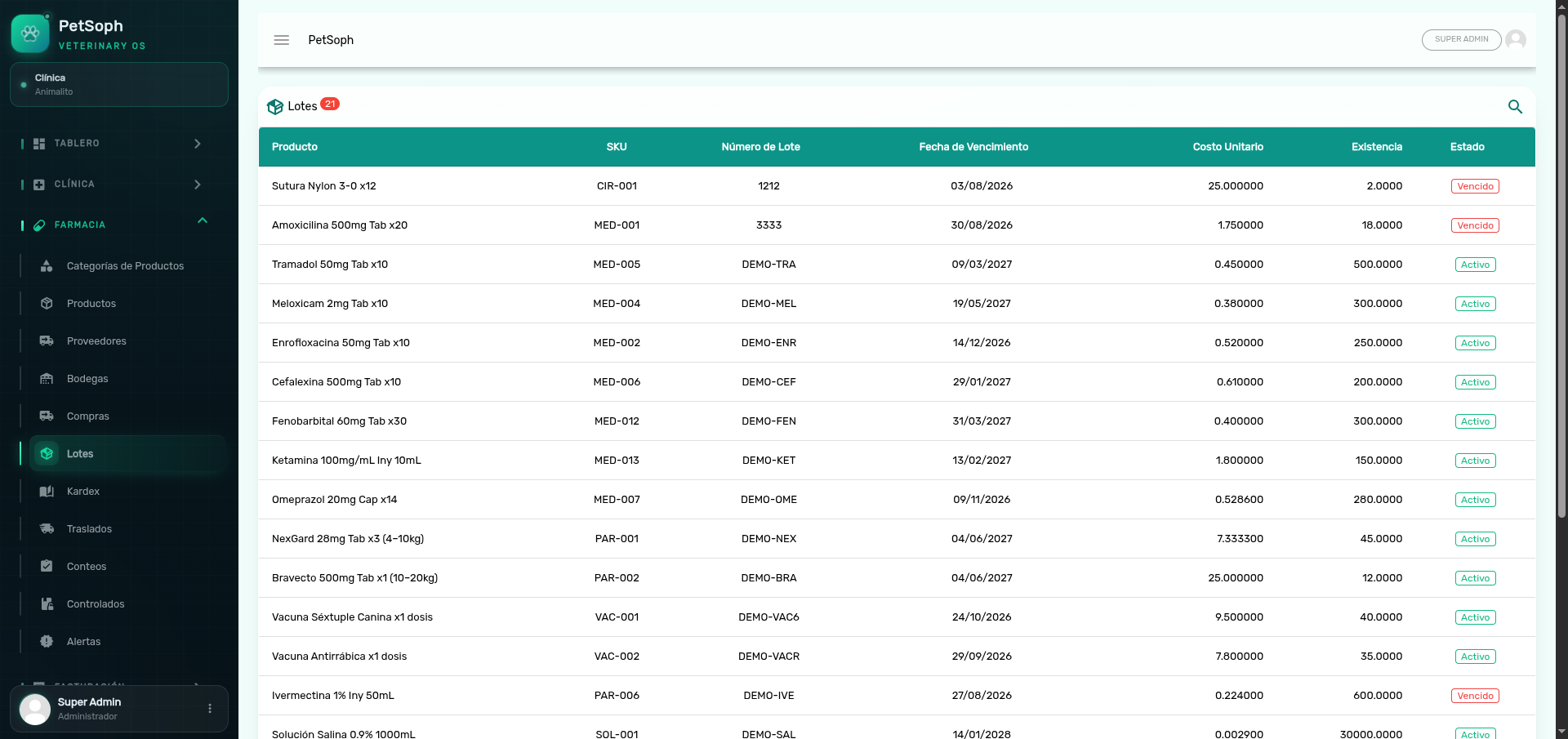 Figure 3. Lot traceability catalog with balances and statuses.
| Status | Color | Meaning |
|---|---|---|
| Active | Green | Available |
| Exhausted | Grey | Balance reached zero |
| Expired | Red | Expiration date passed |
| Frozen | Orange | Blocked |
- Expired lots switch to Expired automatically before every inventory operation.
- When an exit leaves the balance at zero, the lot becomes Exhausted.
4. Kardex
The Kardex is the immutable ledger of every inventory movement.
- It can be filtered by warehouse and searched by product, warehouse or movement type.
- Columns: date (
DD/MM/YYYY HH:mm), product, warehouse, movement type, lot, base-unit quantity, unit cost and warehouse balance. - Movement types: Purchase in, Sale, Clinical consumption, Expiration, Discard, Return in, Sale void, Adjustments (+/-) and Transfers (in/out).
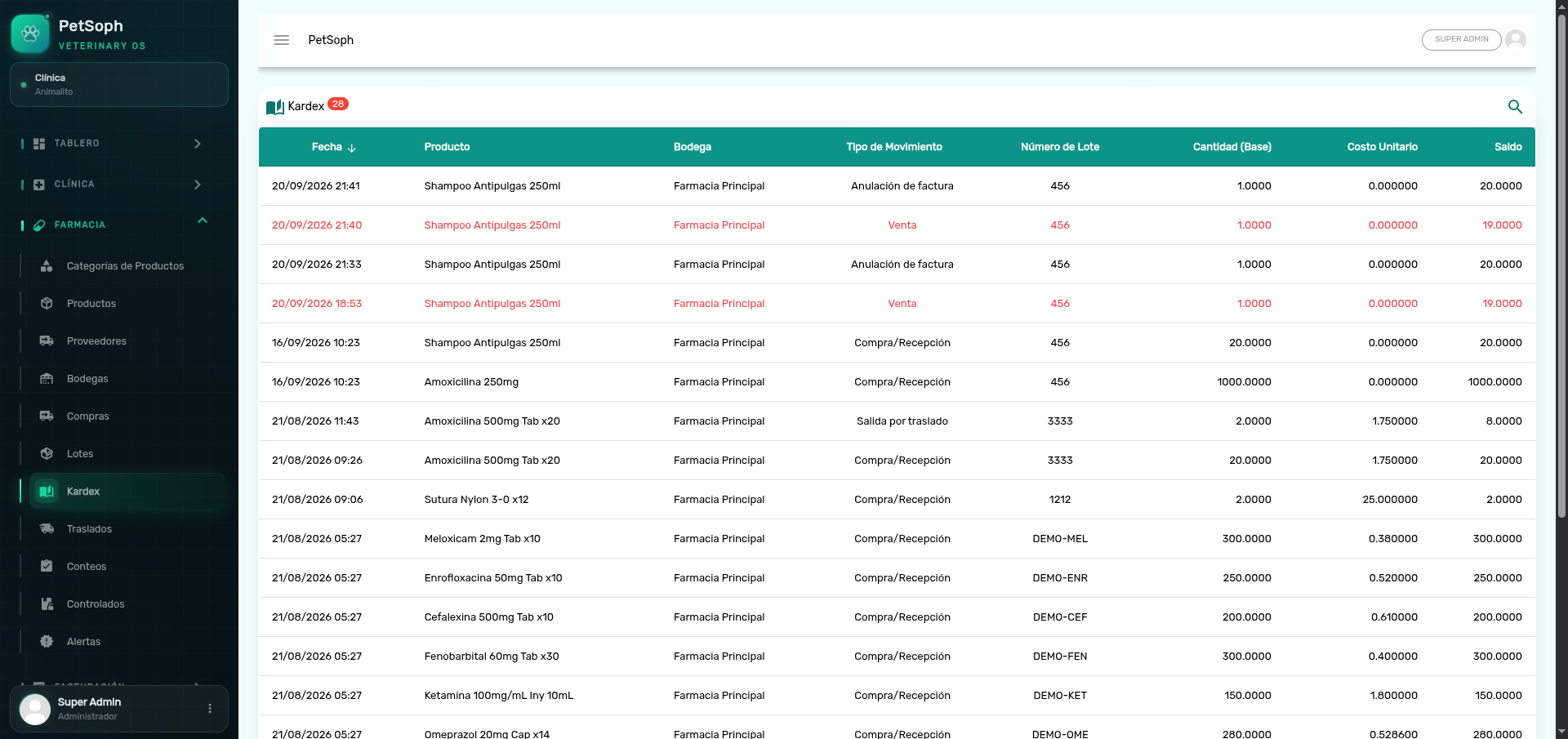 Figure 4. Immutable inventory movements ledger.
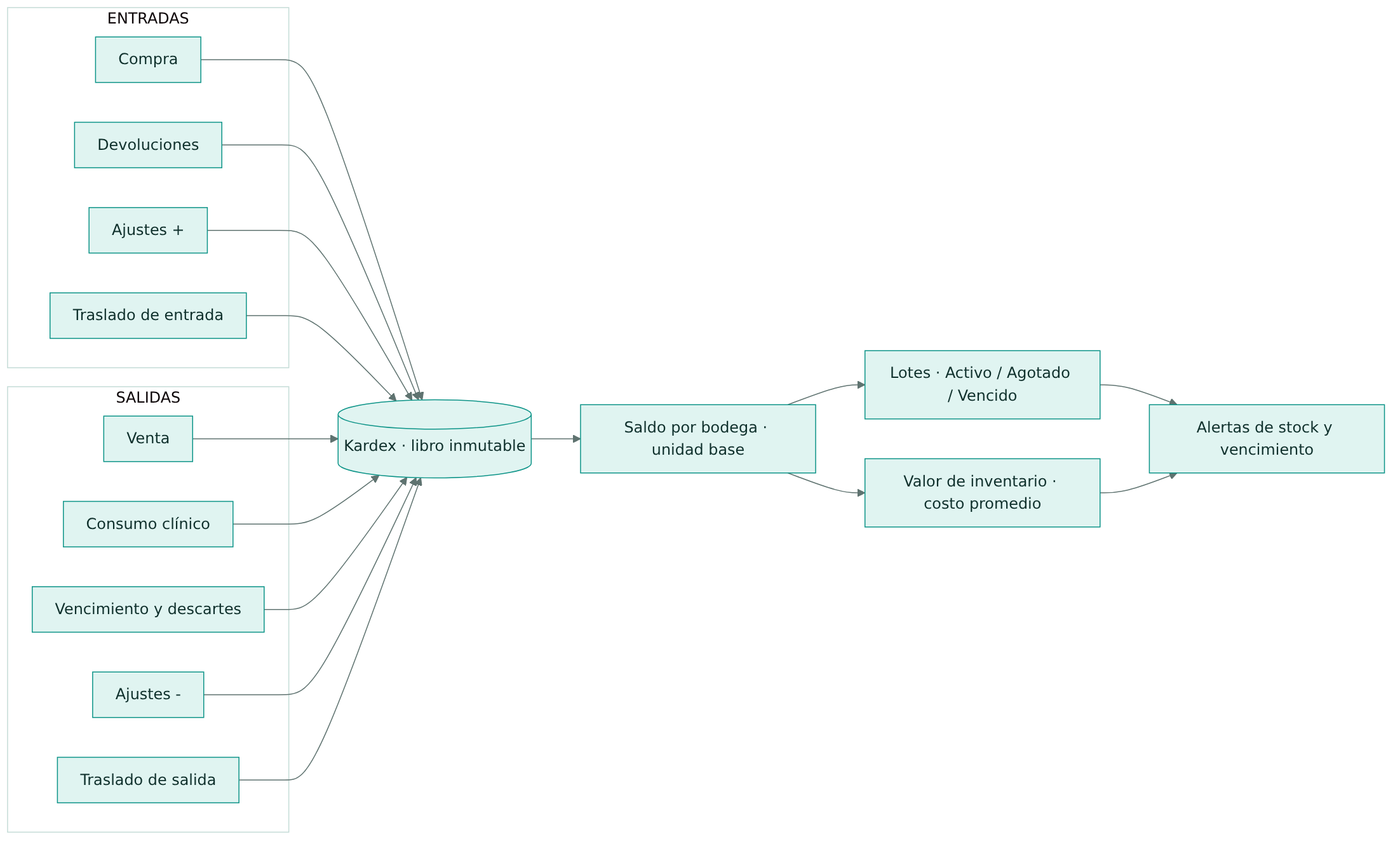
Figure 5. Every inventory movement is recorded in the kardex.
The kardex cannot be edited or deleted (not even from the database). Errors are corrected with new adjustment movements, never by deleting.
5. Transfers between warehouses
Transfers move stock from an origin to a destination warehouse and follow a state machine: Draft → Dispatched → Received (or Cancelled).
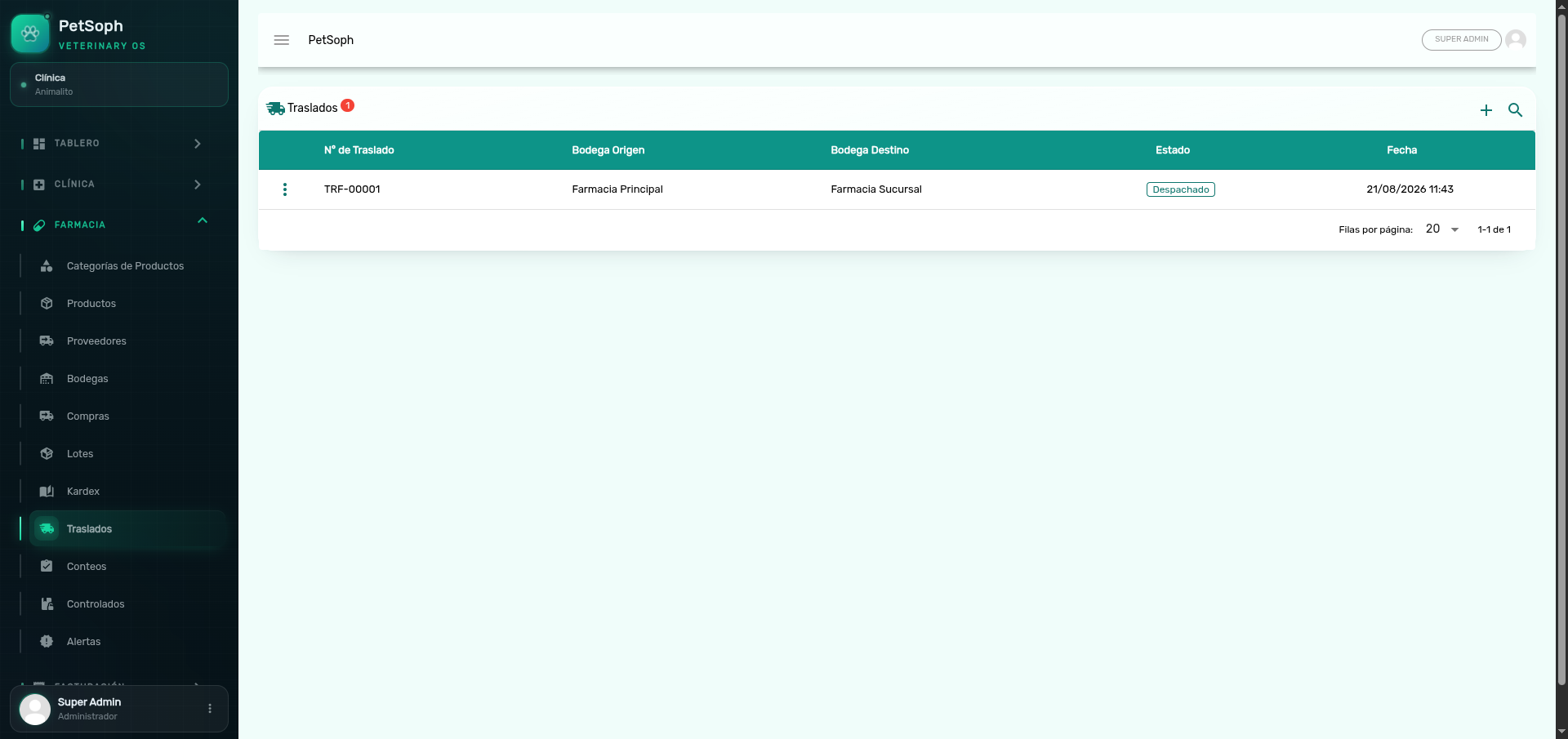 Figure 6. Inventory transfers between warehouses.
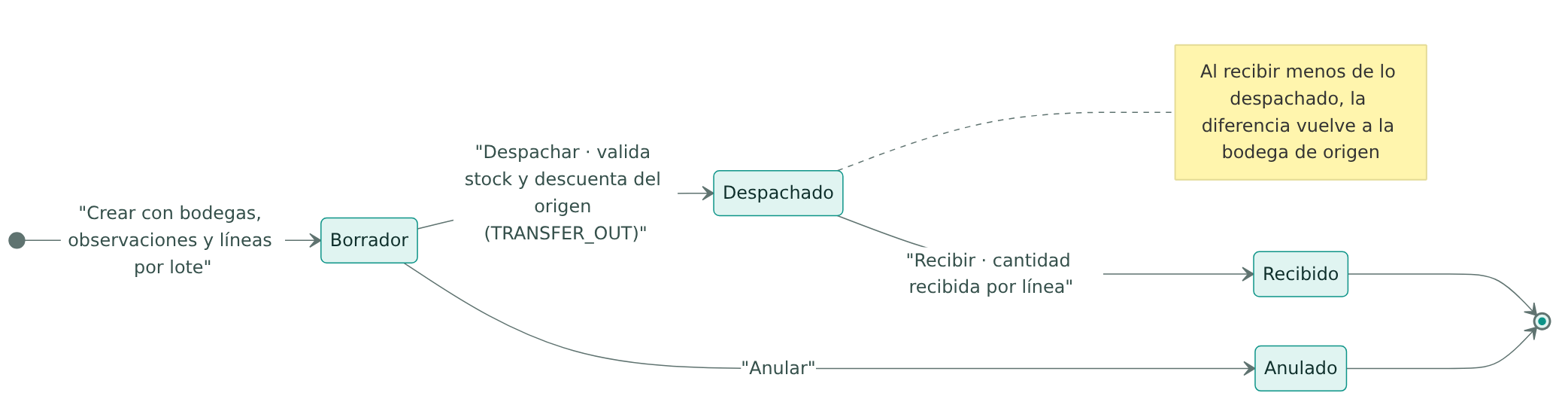
Figure 7. States a warehouse transfer goes through.
Step by step
- Create: select the Origin warehouse, Destination warehouse and observations; add the lines choosing the concrete Lot and Quantity to dispatch (only active lots with stock and not expired are shown, ordered by expiration).
- Dispatch (row menu action): the system validates available stock and deducts from the origin
with
TRANSFER_OUT. - Receive: confirm the Received quantity per line. If less than dispatched is received, the difference returns to the origin.
Only a Draft transfer can be edited or deleted. Once dispatched it can only be received.
6. Stocktakes
Stocktakes run cycle counts per warehouse with blind counting: the system-recorded quantity stays hidden until reconciliation, so the counter is not influenced.
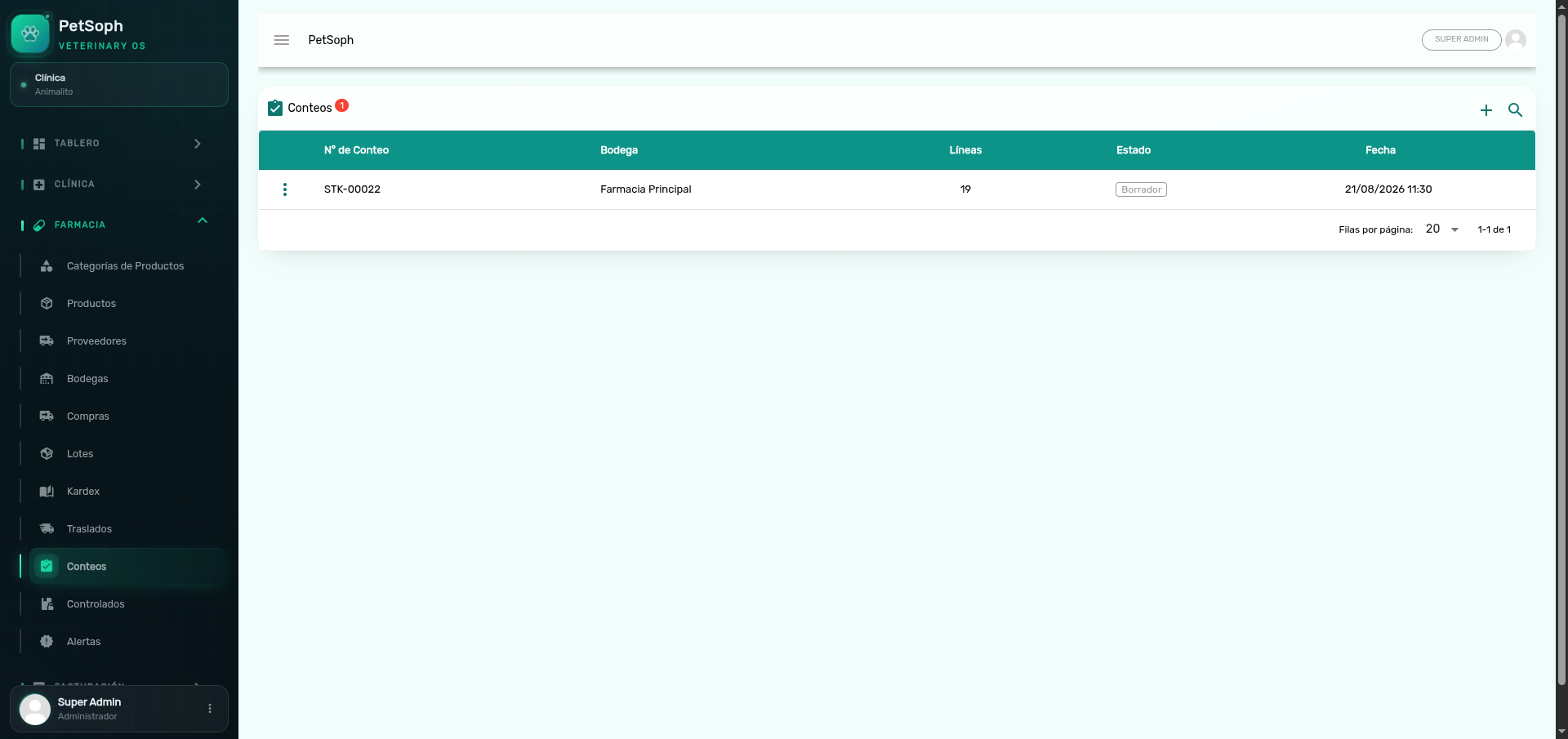 Figure 8. Cycle stocktaking screen.
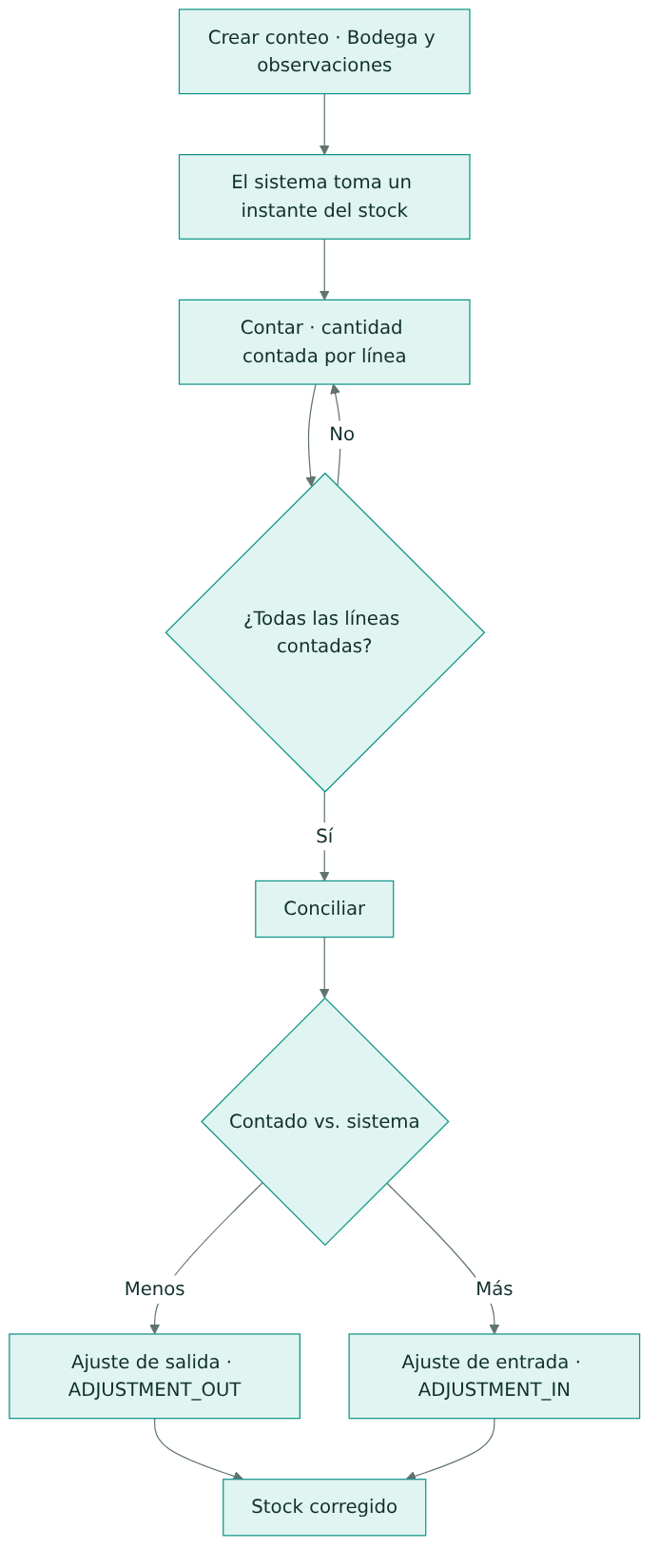
Figure 9. Cycle-count flow and the adjustments it generates.
Step by step
- Create a stocktake selecting the Warehouse and observations. The system takes a snapshot of the warehouse stock (empty warehouses cannot be counted).
- Count (Start count action): enter the Counted quantity for each product/lot.
- Reconcile (only when every line has been counted): the system compares counted vs system and
generates the adjustments automatically:
- If you counted less → Adjustment out (
ADJUSTMENT_OUT). - If you counted more → Adjustment in (
ADJUSTMENT_IN).
- If you counted less → Adjustment out (
Blind counting works because the system quantity is hidden in the counting dialog. Don’t look it up in another screen before reconciling: it would defeat the purpose.
7. Controlled drugs book
The Controlled Drugs Book is the official log of controlled drugs with
a yearly running folio (YEAR-NNNNN).
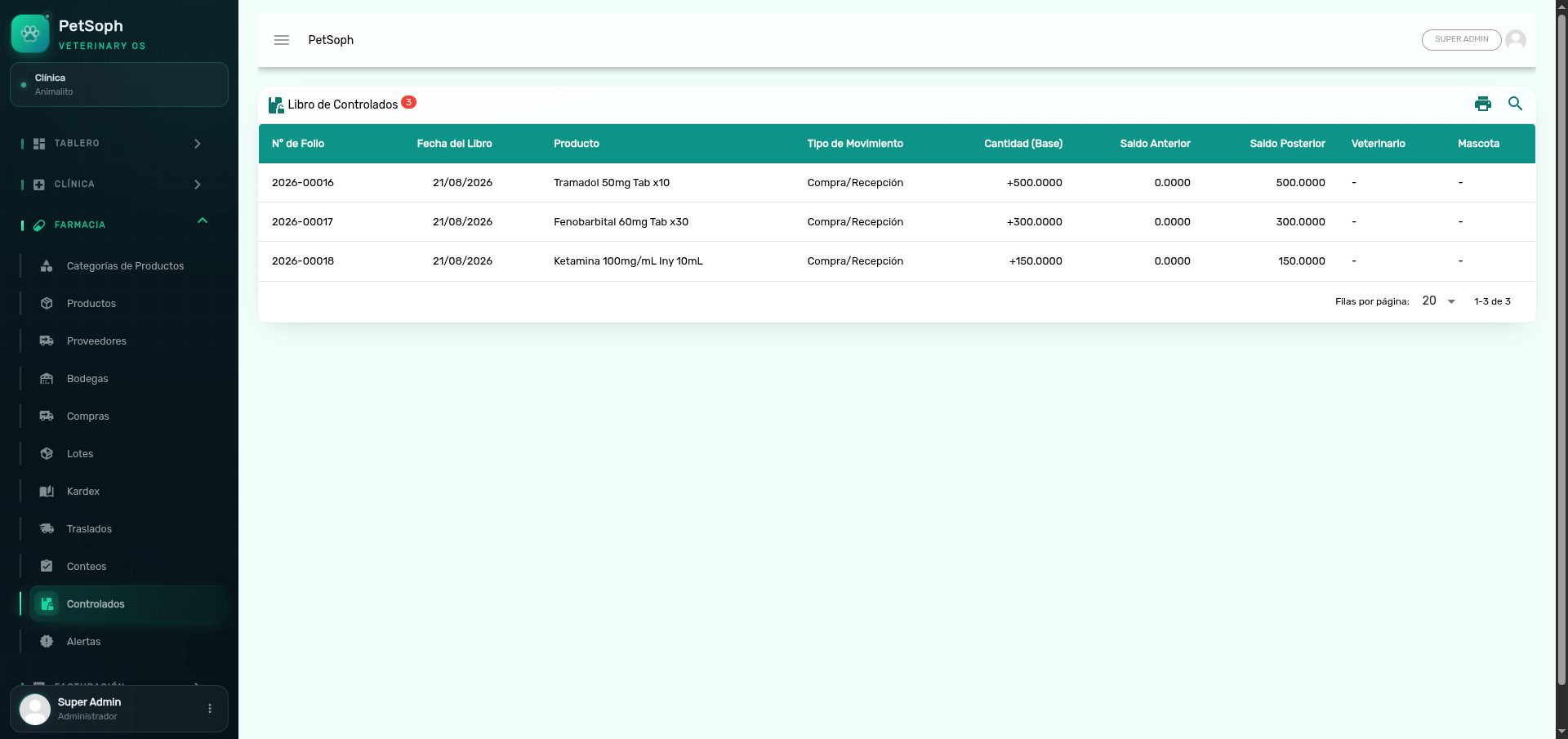 Figure 10. Official logbook of controlled drugs movements and folios.
- It is fed automatically from the kardex: any movement of a controlled product generates a record with folio, before/after balances and the authorizing user.
- It can be filtered by date range and searched by folio, product, veterinarian or pet.
- The Print button produces the official report with the clinic name.
Clinical consumption of a controlled drug requires a veterinarian with a license number; without it the system rejects the operation with a warning.
8. Stock alerts
The Alerts screen shows the expiration and low-stock traffic light for every product with balance, with chip filters: All, Critical, Expiration and Stock.
Expiration traffic light
| Level | Condition |
|---|---|
| Expired | Date passed |
| Red | Expires in ≤ 30 days |
| Yellow | Expires in ≤ 90 days |
| Green | The rest |
Stock traffic light
| Level | Condition |
|---|---|
| Below minimum | Balance ≤ minimum stock |
| Reorder | Balance ≤ reorder point |
| OK | The rest |
Thresholds are configured per product in Products (minimum stock and reorder point). The Print
button produces the alert report with the clinic name and date DD/MM/YYYY HH:mm.
What’s next
- Products: define the categories, units and thresholds that feed these operations.