In this article
The Consolidated check-out (or Visit settlement) is the way to close a complete medical visit in a single invoice: it groups everything that has not been charged to the pet —consultations, vaccinations, surgeries and grooming— and settles it in one payment in front of the owner. It is the same Check-out / Visit settlement button you see in the header of the clinical record.
Getting there
- Pet’s Clinical Record → Check-out / Visit settlement button (top right).
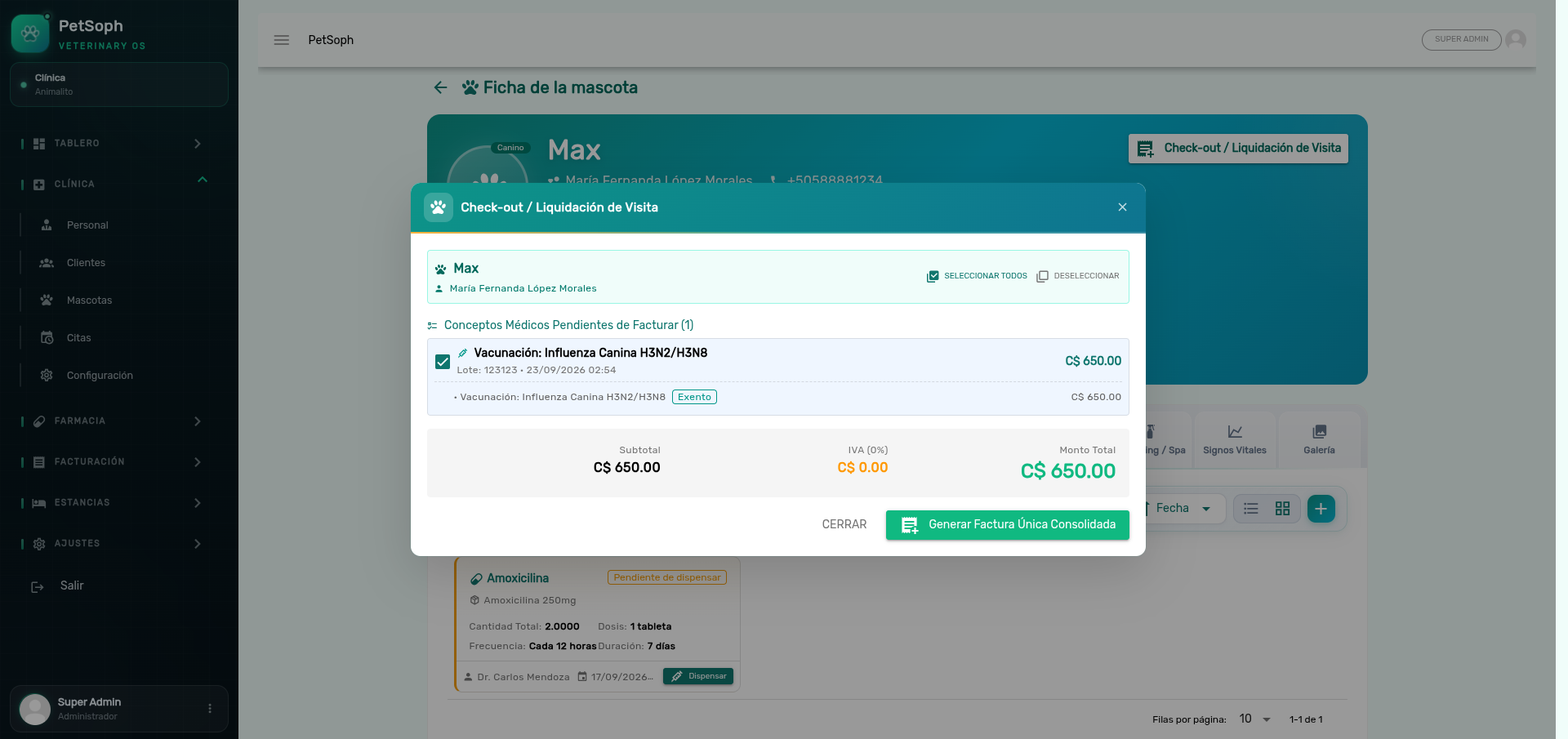 Figure 1. Consolidated settlement dialog with clinical item selection and combined billing.
1. What the dialog shows
Header
- Pet and Customer spaces: who gets billed (the main owner) and for which pet.
Pending Medical Billable Items
Grouped list (pending-billing-items) of everything with no invoice yet, split by type:
| Type (group) | What it groups |
|---|---|
Consultations (consultations) |
Medical consultations with no invoice |
Vaccinations (vaccinations) |
Card doses with no invoice |
Surgeries (surgeries) |
Surgical procedures with no invoice |
Grooming (groomings) |
Grooming services with no invoice |
Each group shows: act author (icon and color by type), act date, items and its group subtotal.
- Select all / Deselect: check or uncheck all at once. By default everything is selected.
In the consultations only those recipes show that have not been dispensed yet (an already dispensed prescription was invoiced at dispensing time; including it here would charge it twice).
Summary
- Subtotal → VAT (X %) → Total Amount (C$).
Use this view to review the breakdown before charging. It’s the moment to explain to the owner what they’re paying: “the consultation, the vaccine and the bath”, with no surprises on the total line.
2. Generate the consolidated invoice
Press Generate Consolidated Invoice (consolidated_invoice). Prerequisites:
- At least one selected item.
- The pet with a main owner.
- An open cash shift.
On confirm, the system:
- Creates one single invoice with sequential numbering.
- Links that same invoice to all the selected clinical acts (consultations, vaccinations, surgeries and grooming).
- Auto-dispenses the selected prescriptions: marks them as Dispensed, deducts medicines from inventory (kardex, clinical consumption movement) and generates the dispensing charges — on the same invoice.
- Opens the payment dialog (Total / Paid / Outstanding Balance).
The prescriptions that go through the consolidated check-out already come with their medicine dispensed and deducted from inventory once the invoice is confirmed. No need to go through the individual dispensing dialog afterwards: dispensing and charging happen in one single act.
3. The payment
- Total: the consolidated invoice amount (C$).
- Amount to Pay / Deposit: how much is paid now. It can be the total or a partial payment (down payment or partial amount).
- Payment method: Cash / Card / Transfer.
- Reference: voucher number (optional; useful for transfers).
- Confirm the charge: the cash shift records the income and the invoice becomes Paid or Partially Paid (if an outstanding balance remains).
You cannot charge more from an invoice than what is owed. The outstanding balance is always shown on screen so the amount is correct.
4. Invoice states after payment
| State | Badge | What it means |
|---|---|---|
Paid (PAID) |
Green | The total was charged |
Partially Paid (PARTIALLY_PAID) |
Blue | There is a down payment, balance remains |
Pending (PENDING) |
Amber | Invoice with no amount (e.g. invoice was just generated) |
Void (VOID) |
Red | Voided from Cash Register (refunds the down payment) |
5. Void a consolidated visit
If a mistake was made and the visit was already settled:
- Go to Cash Register and void the consolidated invoice (the down payment is refunded to the owner).
- Only then the clinical acts become available to bill again.
A settled consolidated visit cannot be deleted from the record (the money is already in the register). The only way to fix it is to void the invoice from the Cash Register; after that, the record becomes editable again.
What’s next
- Vital signs and weight evolution: the weight and constants progression.
- Surgeries: the complete surgical record.
- Grooming: esthetic service with states and billing.
- Dispensing prescriptions: handing over medicines from the pharmacy.