In this article
This is where the pharmacy’s base catalog is managed: product categories, the products themselves (with their units and prices) and suppliers. A good classification here makes the rest of the module faster.
Getting there
- Sidebar menu Pharmacy → Products, Product Categories or Suppliers.
1. Product categories
Categories group products (e.g. medicines, supplies) and define the SKU prefix.
| Field | Description | Required? |
|---|---|---|
| Code | Exactly 3 uppercase letters (e.g. MED) |
Yes |
| Name | Visible category name | Yes |
- The code must match the 3-letter
A-Zformat. - A System category cannot be deleted (the system protects it).
If you change the code of a category that already has products, the SKU of those products is regenerated automatically with the new prefix.
2. Products
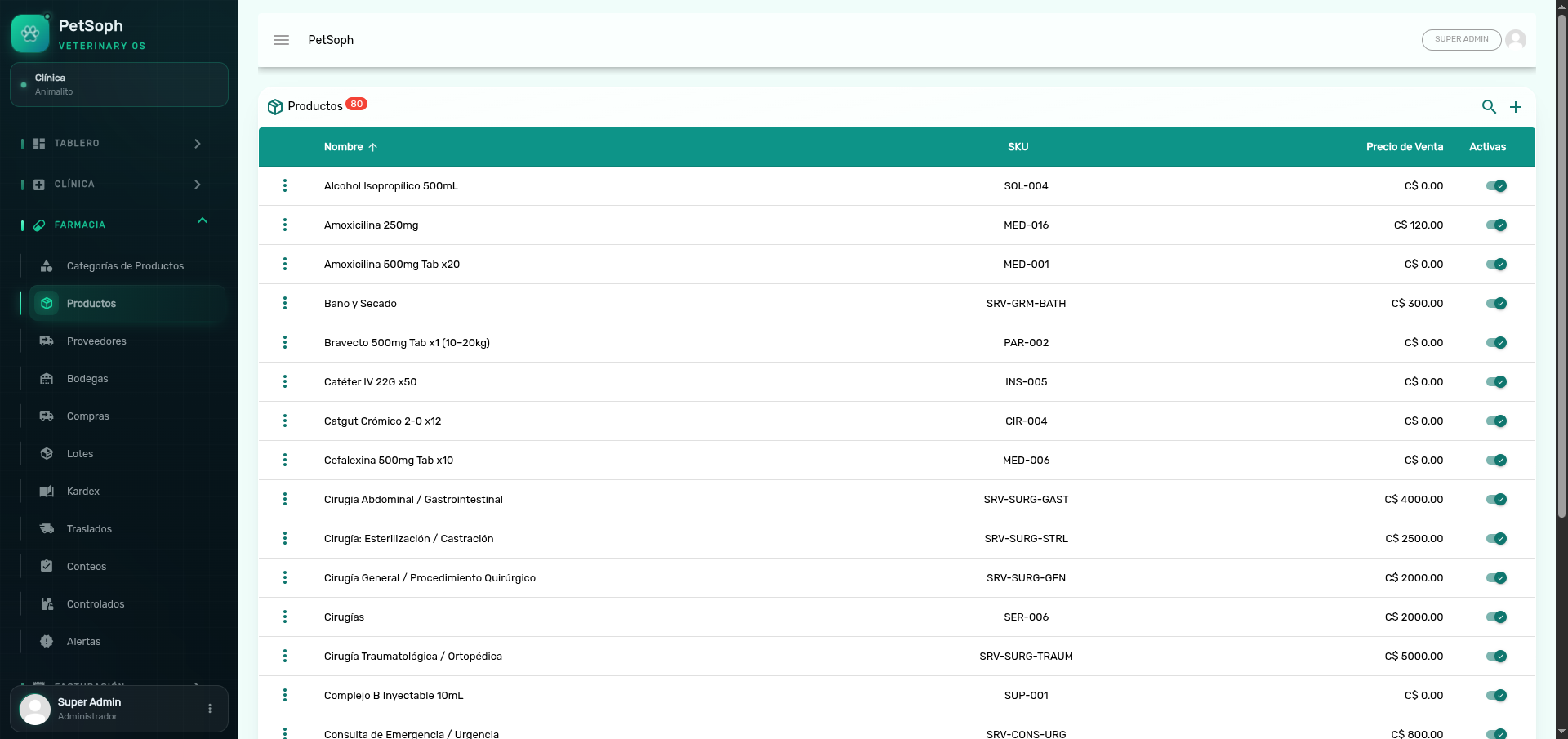 Figure 1. Products catalog with auto-generated SKU, category, units, and statuses.
Step by step: register a product
- In Products press the New button.
- Select the Category (required).
- Enter the Name (required) and, optionally, Description, Barcode and Tax (
isTaxable). - Set the Base Unit (e.g. pill) and, if purchased in another unit (e.g. box), the Purchase Unit (e.g. box) and the Purchase Factor (e.g. 12).
- Adjust the Minimum Stock and the Reorder Point to feed the alerts.
- Mark it as a Controlled Drug when appropriate.
- Save.
Auto-generated SKU
The SKU is generated automatically with the format <CATEGORY-CODE>-NNN (e.g. MED-001) using
the category code. When editing, if you change the category the SKU is regenerated.
Units: base, purchase and factor
- Base unit: the standard in which stock is recorded.
- Purchase unit: shown in selects as
ABR - NAME. - Purchase factor: how many base units fit in one purchase unit (e.g. 12).
Receipts convert automatically: base quantity = purchased quantity × factor. All balances are kept
in the base unit.
Controlled drugs
- The Controlled toggle marks the product for the Controlled Drugs Book.
- Every movement of the product generates a running folio with the current date.
- Dispensing a controlled product is invoiced to the pet’s primary owner.
3. Suppliers
| Field | Description | Required? |
|---|---|---|
| Name | Supplier company or business name | Yes |
| Tax ID | Tax identification | No |
| Phone | Contact phone | No |
| Contact | Contact person | No |
| Email address | No | |
| Address | Physical address | No |
Suppliers are used in Purchase Receiving.
Always record the Phone and Contact: it makes reconciling paper purchase invoices much easier.
What’s next
- Inventory: how stock arrives at the warehouse and expiration is controlled.